
Art Of Creation – Dynamics AX Blog
The everyday life of a Dynamics AX developer
To have AIF import and export message, you have to have 4 batch tasks running (all about it here on TechNet). However, when developing, it is inefficient (and also tad tedious) to wait for those batches.
Here are two jobs to run inbound and outbound messages manually, so you don’t have to wait for the batches to pick them up.
Inbound:
Outbound:
Ofcourse, you can put this code in classes, or combine them so they are executed together. Because inbound messages can trigger outbound messages, it’s better to process the inbound messages before the outbound messages.
In this post I want to show you the use of the new() and construct() method when instantiating classes using a simple example class. This is a design that is used a lot an AX.
It is best practice to set the new method as protected (MSDN), and it is also best practice to have a construct method in your class (MSDN). So let’s see how we should implement these best practices.
Like a good recipe, a good class has a few important ingredients:
– Parm methods for variables
– A protected new method
– A static contructor
– A run method
1. ClassDeclaration
As an example, we will create a new class: KLFShowRecordInfo
The function of the class will be to display some information about a record.
This class has one variable, a record. The type is Common so we can store any record in this variable.
2. Parm method
First thing is to create a parm-method for this variable (created using parmFromCD editorscript):
Your code will be much cleaner and easier to debug when you use parameter methods.
3. New Method
Next, we will override the new method and make it protected:
Methods that are declared as protected can only be called from methods in the class and in subclasses of the class where the protected method is declared. When we want to create an instance of this class from an other class, we’ll have to call the construct method.
When calling the new() method in any other class, we would get the following compiler error:
The method is declared protected and may only be called from methods in classes derived from KLFShowRecordInfo.
4. Construct method
When using the editorscript to create a construct() method (Right click – Scripts – template – method – construct), it will look like this:
However, I always rewrite it like like this because it is easier to extend afterwards:
Now we’ll have to modify the construct method to receive a parameter, and use the parm method to set the variable in our class:
5. Run method
All we need now is some logic to add to this class. Most of the time, I name the method ‘run’, but you can give it any name you like. The method will display the name of the table of the record you pass to it.
6. Test job
Next, a job to test it:
You can see that we only need one line of code to call our class, and we don’t need a variable, which makes the code cleaner.
Output:
CustTable
Conclusion
When creating a class, start with declaring the new method as protected. This will force you to use a static construct() method. This in turn will force you to think twice about the structure of your class, and will result in cleaner/better code with a more ‘AX-y’ feel.
In part 2, I will demonstrate how this design principle helps you to maintain your code when extending functionality.
On March 31 and April 1, I will be attending Microsoft TechDays 2010 conference in Antwerp, Belgium. Me and my colleagues will be wearing a T-shirt that says RealDolmen (no doubt followed by a catchy slogan the PR people will come up with).
With over 80 sessions from international speakers to choose from, it will be difficult to pick the most interesting ones.
See you at TechDays.
Link: Microsoft TechDays 2010
Here’s a little ‘be-aware’ I’d like to share.
The function str2int() that converts a string to an integer will return ‘0’ if the input string is not an integer, so it is necessary to check if the string is an integer before casting it.
The function that does this is not IsNumeric() like in SQL or VB, but IsInteger().
Alternatively, you can also use str2IntOk(). Both are found in the global class.
I’ve seen people searching for this method (including me), so I just thought I’d share.
Here’s some sample code:
Update June 2016: if you input “123abd”, the str2int function will return 123, not 0 as you might expect from the “abc123” example!. So be sure to Always use the isInteger function before using str2int.
This week, we were shrinking a database of a development environment by deleting some companies.
Here a nice little SQL statement that uses the sp_MSforeachtable stored procedure to delete all records of a specific company (CEU in this case) from all tables.
Certainly fast(er than AX) and gets the job done.
Use at your own risk ;-)
Update:
You’ll want do do some cleaning up to:
delete the company id from the DataArea table and from the CompanyDomainList table
Update 2:
When you want to delete all companies except a few (like DAT), just use this:
This will delete all companies except DAT en DEMO.
Are you one of those people who always minimize the content pane in AX 2009?
Are you one of those people who don’t know what the breadcrumb on top of the AX screen is for?
Do you already execute a job to disable the content pane on startup?
Then you might feel totally nostalgic when you see the Axapta 3 menu appearing after you run the following job in AX 2009.
A new book written by Mindaugas Pocius about AX development was published last month: Microsoft Dynamics AX 2009 Development Cookbook.
The book contains step-by-step instructions along with screenshots and aims at Dynamics AX developers of beginner and intermediate level.
To give you an idea, here are the chapters:
Chapter 1: Processing Data
Chapter 2: Working with Forms
Chapter 3: Working with Data in Forms
Chapter 4: Building Lookups
Chapter 5: Processing Business Tasks
Chapter 6: Integration with Microsoft Ofice
You can buy the book, eg on Amazon.com or at Packt Publishing.
You can also download the sample code used in the book.
I had this situation where overriding the lookup() method on a field on a form was not working.
The problem was the AutoDatagroup property on the field group on my grid.
When this property is set to Yes, the lookup override will not work.

Also, when you change this property from ‘No’ to ‘Yes’ when methods have been added or overridden on the fields, the methods wil be cleared and you will loose your code.
Update: see comment by Luegisdorf about overwriting this method in datasource in stead of the control.
Someone on the Microsoft AX newsgroups asked how to get a list of directories and subdirectories given a folder. Here a job that does that:
Also check my post about how to loop files in a folder (method loopfilesSystemIO)
If you want a quick way to check to what database and application folder you are connected, you can use the ‘Upgrade checklist’ form:
Administration – Setup – System – Checklists – Upgrade checklist.
It shows you:
– Database server
– Database name
– Application folder
– Layers in the application

Upgrade Checklist
There are a few tools I use daily that I really couldn’t live without. One of them is Launchy, by Josh Karlin (launchy.net).
From the website:
Launchy is a free windows and linux utility designed to help you forget about your start menu, the icons on your desktop, and even your file manager.
And it really does just that. You won’t be using the Start menu anymore once you’ve installed this tool.
You can download it here.
Once you’ve installed it, you will see… nothing, untill you hold Alt and tap Space.
Then you see something like this:

Once you start typing, say “Dynami…”, Launchy searches for programs that match the string you are typing. Tap Enter to launch the program.

You can use Launchy to launch specific AX configurations by creating a folder that contains axc files.
Go to the AX Client Configuration Tool, create your configurations and export them using Manage – Safe configuration file to store them in a folder.

You can setup Launchy to monitor this folder by holding Alt, tapping Space, right clicking on the Launchy window and clicking Options. On the tab Catalog, you should see something like the screenshot below. As you can see, I have already added the folder and the extension axc to the list.
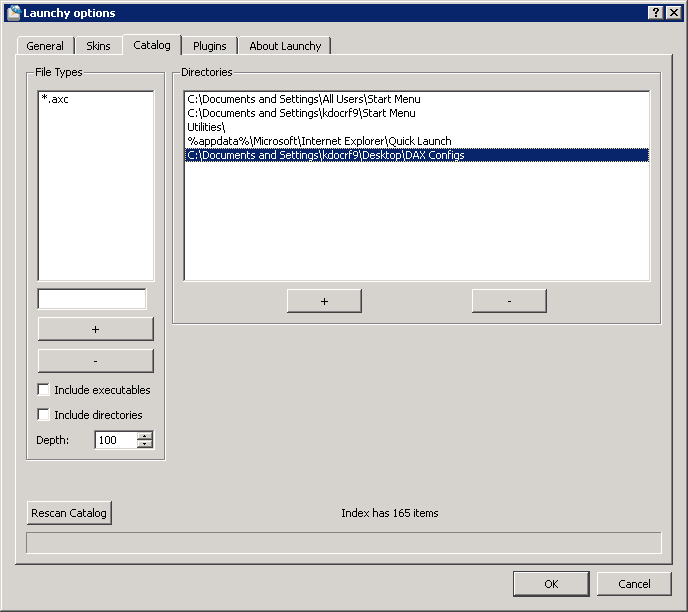
Launchy options screen
Now you only need to click the Rescan Catalog button, and you’re set to go.
The end result should be something like this:

You should be able to launch right into any AX application with minimal effort now.
And of course, you can use Launchy to launch any other program as well.
Links:
Launchy website: launchy.net
Inspiration for this post: SmartStart 3000 Central
There is a new AX blog in the blogosphere by Patrick Kränzlin, nicknamed Luegisdorf. Patrick is very active on the Dynamics AX newsgroups, and is also the author of SmartStart 3000 Central, a tool for managing and launching Dynamics AX configurations and applications.
Be sure to check out his website, and his first post about reflection:
How to ignore Private, Protected and Abstract modifiers.
Hi guys,
It seems like I’m going to be doing a lot of AIF in the future, so I’d like to share the first AIF error I came across:
The path C:\AIF does not exist or is not accessible from an AOS server. Always use a UNC path.
You can get this error when setting up channels.
While I immediately know what the problem was (you have to use shares), my less technical-minded colleague didn’t know what to do.
This is what Wikipedia has to say about ‘UNC path’:
The Microsoft Windows UNC, short for Universal Naming Convention or Uniform Naming Convention, specifies a common syntax to describe the location of a network resource, such as a shared file, directory, or printer. The UNC syntax for Windows systems has the generic form:
\\ComputerName\SharedFolder\Resource
So there you have it, you have to use a shared folder in stead of a local folder.
This is logical, as AIF runs on server, and the AOS can not access your local folders.
There is an option on the ‘status bar’ tab of the options screen (AX button – Extra – Options), that some people think that doesn’t work: Show AOS name.
You can see what I mean on the screenshot below.

Show AOS name

Instance name
Also note that this doesn’t really show the AOS you are connected to, it merely shows the value you specified in the instance name field in your configuration.
So does this functionality work? Yes, but not as you’d expect.
I’ve noticed some people are visiting this blog looking for code that runs multiple jobs, so here’s a job that does just that.
Easy enough :).